Hello,
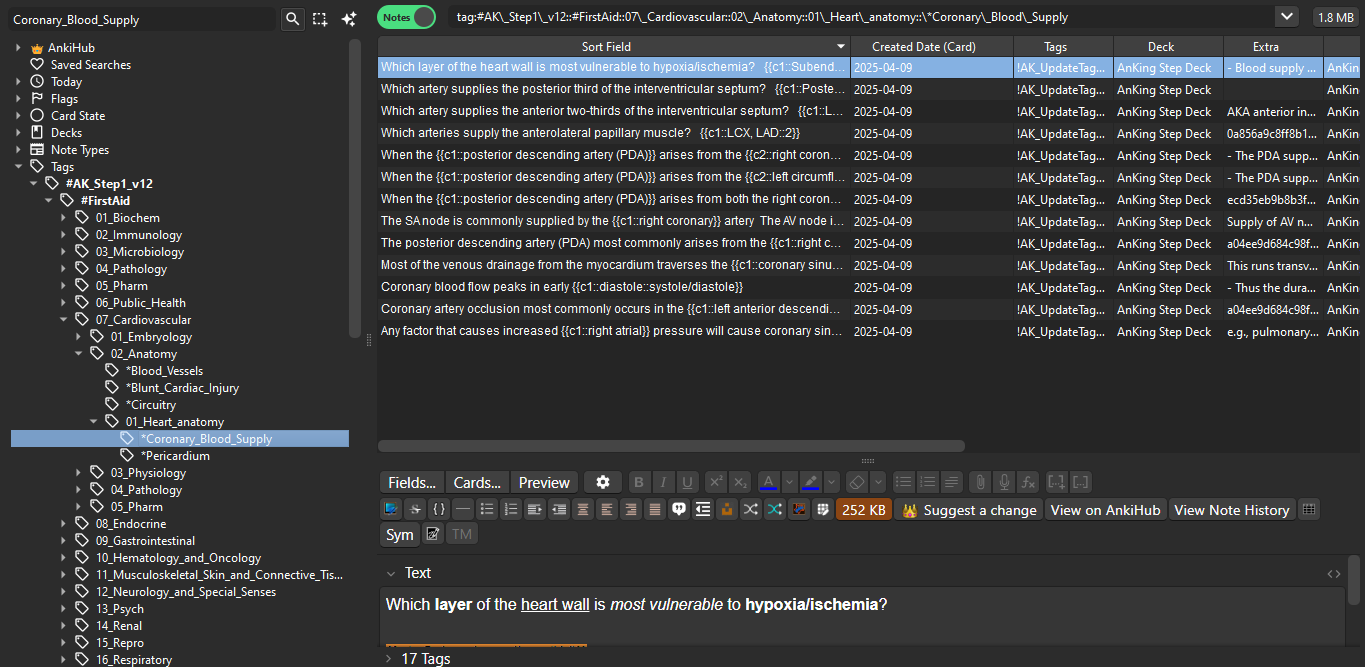
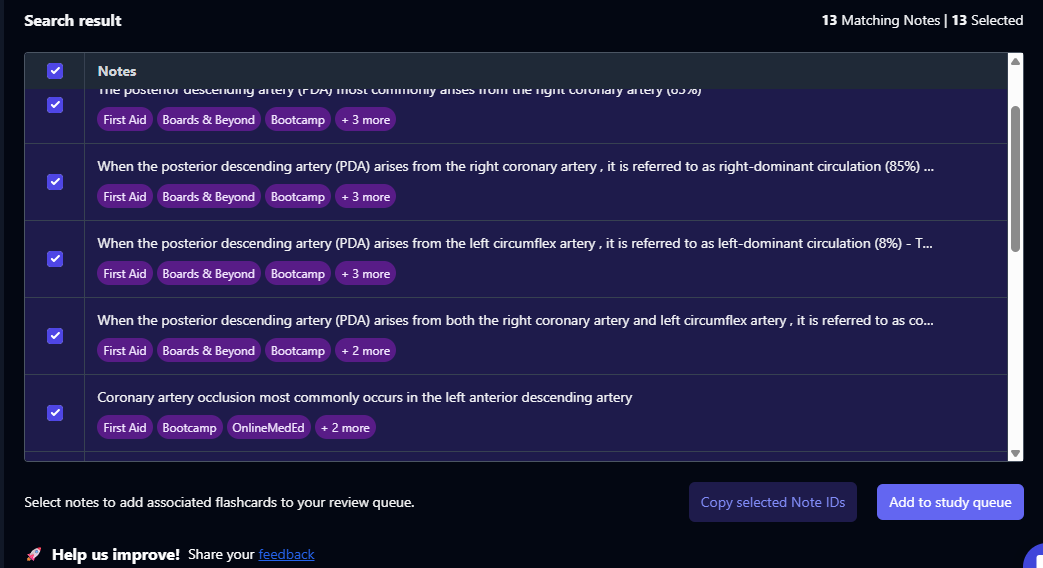
I’m having an issue with Smart Search and tags. I was able to create a new study queue (e.g., “Coronary Blood Supply”) through Smart Search on AnkiHub, and it showed me the correct results online. However, after syncing to Anki on my MacBook, I cannot locate those cards by tag in the Browse window.
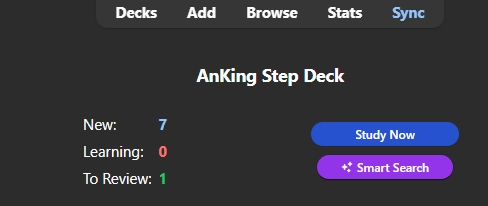
I’ve confirmed that everything is correct in terms of syncing — the deck updates properly and the cards are unsuspended. The issue seems specific to the AnKing Step Deck (Step 1) and how the tags appear locally.
I’ve tried searching using tag:Coronary and related commands, but nothing shows up, even though the cards should be there. It seems like the tags either aren’t coming through correctly or I’m missing a step in how to access them on Anki Desktop.
Could someone please clarify the correct way to make Smart Search tags appear in Anki Desktop after syncing? Do I need to enable a specific setting or use a different search command?
Thank you very much for your help!